From Plain Text to Polished PDF: 3 Simple Ways to Convert TXT Files
Whether you are a developer documenting code or a student organizing notes, the humble .txt file is the ultimate "no-frills" format. However, when it’s time to share that information professionally, a PDF is preferred. It preserves formatting, ensures security, and looks the same on every device.
Converting text to PDF doesn’t have to be a headache. Depending on your workflow—whether you prefer manual clicks, quick online fixes, or programmatic automation—here are the three best ways to get the job done.
1. The Old Reliable: Microsoft Word
If you have Office installed, you already have a powerful PDF converter at your fingertips. This is the best method if you want to style your text before locking it into a PDF.
How to do it:
Open the file: Right-click your .txt file and select Open with > Word.
Format (Optional): This is your chance to change fonts, add headers, or adjust margins. Word treats the text as a blank canvas.
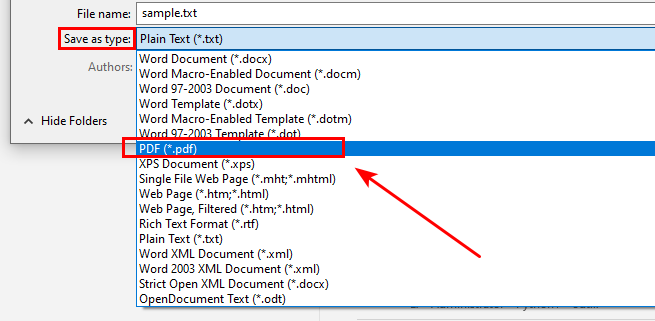
The Save: Go to File > Save As (or Ctrl + S).
Choose PDF: In the file type dropdown menu, select PDF (*.pdf) and hit Save.
Pro Tip: Use this method if you need to add a table of contents or images to your text before finalizing the document.
2. The Quick Fix: Online Conversion Tools
If you’re on a guest machine or don’t want to open heavy software, online converters are a lifesaver. Tools like iLovePDF, Smallpdf, or CloudConvert are built for speed.
The Workflow:
Upload: Drag and drop your .txt file into the browser window.
Convert: Click the "Convert" button. The server handles the processing power.
Download: Grab your finished PDF in seconds.
The Trade-off: While convenient, be cautious with sensitive data. Always check the site’s privacy policy regarding how long they retain your files on their servers. For public notes, it’s a quick and simple method; for private keys or legal docs, stick to offline methods.
3. The Developer’s Choice: Automation with Spire.Doc
For those who need to convert files at scale or want to integrate conversion into an application, manual saving is not enough. This is where a library like Spire.Doc for Java comes to help.
It allows you to convert text to PDF programmatically with flexible code, offering much more control than a standard Save As function.
Why use a library?
Batch Processing: Convert 1,000 text files to PDF in a single loop.
Customization: Programmatically set page sizes, fonts, and watermarks.
No UI Needed: Run the conversion on a server without needing Word installed.
Quick Example (Java):
import com.spire.pdf.FileFormat;
import com.spire.pdf.PdfDocument;
import com.spire.pdf.PdfPageBase;
import com.spire.pdf.graphics.*;

import java.awt.*;
import java.awt.geom.Rectangle2D;
import java.io.BufferedReader;
import java.io.FileReader;
import java.io.IOException;

public class ConvertTextToPdf {
    public static void main(String[] args) throws Exception {
        // Read text from a TXT file
        String text = readTextFromFile("/input/sample.txt");

        // Create an object of the PdfDocument class
        PdfDocument pdf = new PdfDocument();
        // Add a new page
        PdfPageBase page = pdf.getPages().add();

        // Create an object of the PdfFont class
        Font font = new Font("SimSun", Font.PLAIN, 11);
        PdfTrueTypeFont font1 = new PdfTrueTypeFont(font);

        // Create an object of the PdfTextLayout class
        PdfTextLayout textLayout = new PdfTextLayout();
        textLayout.setBreak(PdfLayoutBreakType.Fit_Page);
        textLayout.setLayout(PdfLayoutType.Paginate);

        // Create an object of the PdfStringFormat class
        PdfStringFormat format = new PdfStringFormat();
        format.setLineSpacing(20f);

        // Create an object of the PdfTextWidget class using the read text
        PdfTextWidget textWidget = new PdfTextWidget(text, font1, PdfBrushes.getBlack());
        // Set the character formatting
        textWidget.setStringFormat(format);

        // Add the text to a specific location on the PDF page
        Rectangle2D.Float bounds = new Rectangle2D.Float();
        bounds.setRect(0, 25, (float)page.getCanvas().getClientSize().getWidth(), (float)page.getCanvas().getClientSize().getHeight());
        textWidget.draw(page, bounds, textLayout);

        // Save the result file
        pdf.saveToFile("/output/TXTtoPDF.pdf", FileFormat.PDF);
    }

    public static String readTextFromFile(String fileName) throws IOException {
        StringBuilder sb = new StringBuilder();
        try (BufferedReader br = new BufferedReader(new FileReader(fileName))) {
            String content = null;
            while ((content = br.readLine()) != null) {
                sb.append(content);
                sb.append("\n");
            }
        }
        return sb.toString();
    }
}
Here's the preview of the original text file and the converted PDF document:
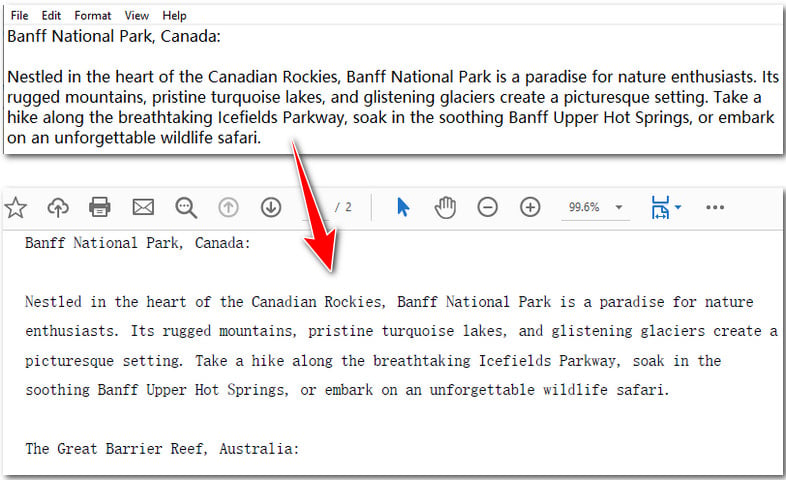
It’s clean, efficient, and perfect for developers building document management systems.
Which Method Should You Choose?
We have explored three distinct paths to transform your plain text into a professional PDF—ranging from the manual familiarity of Microsoft Word to the instant convenience of online tools and the robust automation of Spire.Doc. But which one fits your specific needs right now? To help you decide, here is a quick breakdown comparing them based on use case, speed, and technical requirements.
Scenario | Best Method | Pros |
Single file + custom styling | Microsoft Word | High control over fonts and layout. |
One-off task + no software | Online Tools | Fast, no installation, works on any OS. |
High volume + App integration | Spire.Doc | Automated, scalable, and developer-friendly. |
Summary
Transitioning from a raw .txt file to a professional PDF is all about choosing the right tool for the scale of your task. For personal use, Word and online tools are great. But if you're looking to automate your workflow, exploring a library like Spire.Doc is a game-changer.