PDF vs PDF/A: Differences, Use Cases, and Common Conversion Methods (A Complete 2026 Guide)

In daily work, we’re already used to saving contracts, policy documents, academic papers, and technical materials as PDF files. PDF is convenient, widely supported, and easy to share.
However, when a document needs to be stored for a long time, standard PDFs may no longer display consistently. For example, fonts may fail to display correctly, layouts can break on different devices, some files show errors when opened in a browser, and in the worst cases, the formatting is completely distorted when the file is opened years later.
For enterprise archives, universities, and research institutions, these issues are not rare — they happen almost every year. That’s why more and more people are asking a practical question:
How can we make PDFs reliable for long-term preservation? This is exactly where PDF/A comes in.
Many people encounter PDF/A for the first time and immediately wonder:
What’s the real difference between PDF and PDF/A?
When should I use PDF/A instead of a normal PDF?
Is it difficult to convert PDFs to PDF/A?
Today, we’re going to answer these questions in this blog.
1. PDF vs PDF/A: Key Differences
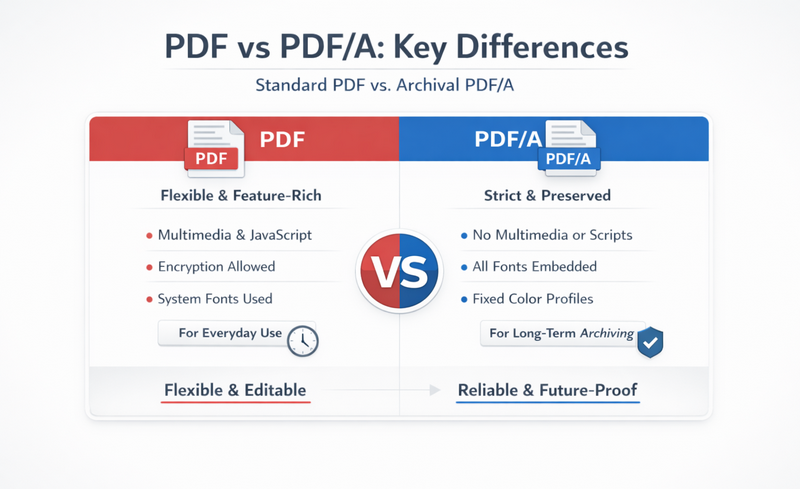
PDF is a very powerful and flexible format. It supports transparency, multimedia content, Jav forms, which makes it ideal for everyday tasks such as reading, editing, collaboraScript, encryption, and interactiveation, and file sharing.
However, this flexibility also comes with risks. Whether a PDF can be opened correctly in the future often depends on the PDF viewer, the operating system, or even the fonts installed on the device. As software and environments change over time, the same PDF file may look different—or fail to open at all.
PDF/A works in a completely different way. It is not an “upgraded” version of PDF. Instead, it is a strictly defined subset of PDF, designed to ensure that documents look the same 10, 20, or even 50 years from now.
To achieve this goal, PDF/A places several restrictions on files:
Encryption, scripts, and multimedia content are not allowed;
All fonts must be embedded;
Color spaces must be explicitly defined, and more.
These limitations may seem like a loss of flexibility compared to standard PDF. But in return, PDF/A offers something far more important for archiving: long-term reliability and consistent rendering, regardless of software or platform changes.
In short:
PDF is designed for everyday use, while PDF/A is designed for long-term preservation.
2. The Three PDF/A Levels: How Do You Choose the Right One?
PDF/A comes in three main conformance levels: PDF/A-1, PDF/A-2, and PDF/A-3. When people first encounter these options, it’s common to feel confused about which one to choose.
In practice, you only need to remember one simple rule: in most cases, PDF/A-2 is the safest and most practical choice.
PDF/A-1 is the earliest standard and has the strictest limitations. For example, it does not allow transparency at all, which makes it more suitable for traditional or legacy archiving systems.
PDF/A-2 relaxes some of these restrictions. It supports transparency and layers, making it a better fit for modern documents while still meeting long-term archiving requirements.
PDF/A-3 goes one step further by allowing original source files—such as Excel or Word documents—to be embedded inside the PDF. While this sounds convenient, it also makes the format more flexible than some archiving environments are willing to accept. As a result, PDF/A-3 is not supported or approved by all institutions.
For this reason, if you don’t have any special requirements, PDF/A-2 is usually the best default choice. It offers strong compatibility without sacrificing the structure and reliability expected from an archival format.
3. When Do You Actually Need PDF/A?
Not every PDF needs to be converted to PDF/A. This format is mainly intended for situations where documents must be stored long term and opened reliably without loss or distortion.
For example, an enterprise archive may store contracts and expect them to remain intact when reviewed years later. Government agencies often require archived documents to be uneditable and free from issues such as missing fonts or garbled text. In academic and research settings, institutions may also mandate PDF/A for project submissions, final reports, or thesis archives.
Beyond that, PDF/A is widely used by law firms, accounting firms, and audit organizations to preserve evidence, financial statements, and finalized documents.
In short, whenever a file is considered a “final version,” meant for long-term storage, or part of a formal archive, PDF/A is usually the safer and more reliable choice.
4. Common Ways to Convert PDF to PDF/A
So what should you do if your document is already in PDF format, but your current workflow or compliance requirements call for PDF/A?
In practice, there are several ways to handle this conversion. Some methods are better suited for one-time tasks, while others are designed for batch processing or automation. In this section, we’ll introduce three commonly used approaches, so you can choose the one that best fits your situation.
1. Converting PDF to PDF/A with Adobe Acrobat
Adobe Acrobat is a professional PDF tool developed by Adobe, and it includes built-in support for converting standard PDFs to PDF/A.
One of its key features is Preflight, which allows you to convert PDFs to PDF/A while automatically checking for potential issues such as missing embedded fonts, encryption conflicts, or incompatible transparency and layers. In many cases, Acrobat can complete the conversion with just a few clicks, making it suitable for basic archiving needs.
You can follow these steps:
Open the PDF. Open the file you want to convert in Adobe Acrobat.
Go to the Tools panel. Click Tools in the top menu and locate PDF Standards.
Save as PDF/A. In the action panel on the right, select Save as PDF/A.
Save the converted file. Click Save, and Acrobat will generate a new PDF/A-compliant document.
By following the steps above, most documents can be successfully converted into a PDF/A-compliant file that meets standard archiving requirements.
2. Converting PDFs to PDF/A with Free Spire.PDF
If your workflow involves automation, batch processing, or system integration, a PDF library with API support is often a better choice. One example is Free Spire.PDF, which allows you to integrate PDF-to-PDF/A conversion directly into scripts, services, or business systems.
With this approach, you can automatically detect incoming PDF files and generate corresponding archival formats without manual intervention. It is well suited for enterprise archiving systems and technical teams that need to process large volumes of documents in a stable and repeatable way.
The following example shows how to convert PDF to PDF/A in Python using Free Spire.PDF:
from spire.pdf.common import *
from spire.pdf import *

# Create a PdfStandardsConverter instance and pass in a PDF document
converter = PdfStandardsConverter("E:/Administrator/Python1/input/sample.pdf")

# Convert the PDF to PDF/X-1a:2001
converter.ToPdfX1A2001("E:/Administrator/Python1/output/pdftopdfa.pdf")
3. Using Online PDF/A Conversion Tools
If you only need to convert files occasionally and don’t have Adobe Acrobat installed, or just need a quick PDF/A file for temporary use, online conversion tools are often the fastest and most straightforward option.
In most cases, the workflow is simple: open a webpage, upload your PDF, and download the converted PDF/A file a few seconds later. No installation or setup is required.
That said, online tools are not recommended for sensitive documents, such as contracts, legal evidence, or confidential records. Uploading these files to third-party websites can introduce security and compliance risks. For this reason, online PDF/A converters are best suited for lightweight tasks that do not involve private or critical data.
5. Why Does PDF to PDF/A Conversion Often Fail?
Converting a PDF to PDF/A sounds like a simple format switch. In reality, the process involves a series of compliance checks to ensure the document meets archival standards. Because of this, many users encounter messages such as “conversion failed,” “non-compliant,” or “preflight check failed.” In most cases, the underlying reasons are quite similar.
Here are the most common ones:
- Fonts are not embedded
Many PDFs appear to display correctly, but the fonts are not actually included in the file. Instead, they rely on system fonts, which causes conversion tools to fail PDF/A validation.
- Unsupported content inside the document
Elements such as transparent images, JavaScript, audio or video files, and interactive form fields violate PDF/A specifications and will trigger errors during conversion.
- Incomplete or malformed PDF structure
Some PDFs exported from scanners or mobile apps have incomplete internal structures, making them more likely to fail during PDF/A conversion.
How to Fix These Issues
A typical solution is to run a preflight check first (this can be done in Adobe Acrobat), review the reported issues, and then fix them accordingly. Common fixes include embedding missing fonts, removing scripts, flattening form fields, or re-exporting images before attempting the conversion again.
With these adjustments, most PDFs can be successfully converted into compliant PDF/A files suitable for long-term archiving.
6. Does PDF/A Increase File Size? Can It Be Edited? Is It Suitable for Everyday Reading?
When working with PDF/A, people often worry about two things: file size and editability after conversion.
In general, PDF/A files are usually larger than standard PDFs. This is mainly because PDF/A requires all fonts to be embedded in the document. If a file uses multiple or complex fonts, the file size will naturally increase.
As for editing, whether a PDF/A file can be modified depends on the tool you use to open it. Most PDF/A files do not technically prohibit editing; their primary purpose is to ensure consistent appearance over time. But in real-world workflows, PDF/A files are typically treated as final versions and are rarely edited after conversion.
From a reading perspective, PDF/A files look almost identical to regular PDFs. They do not affect everyday viewing or printing, and in most cases, readers won’t even notice any difference between the two formats.
Conclusion
If a document is only meant for reading, annotation, or sharing, a standard PDF is usually sufficient. However, if it represents a final version and needs to be archived, submitted, audited, or preserved for many years, PDF/A is the safer choice.
No matter which industry you work in, if you deal with formal documents such as contracts, official records, reports, or academic papers, PDF/A helps ensure that your files remain consistent, reliable, and unchanged over time.